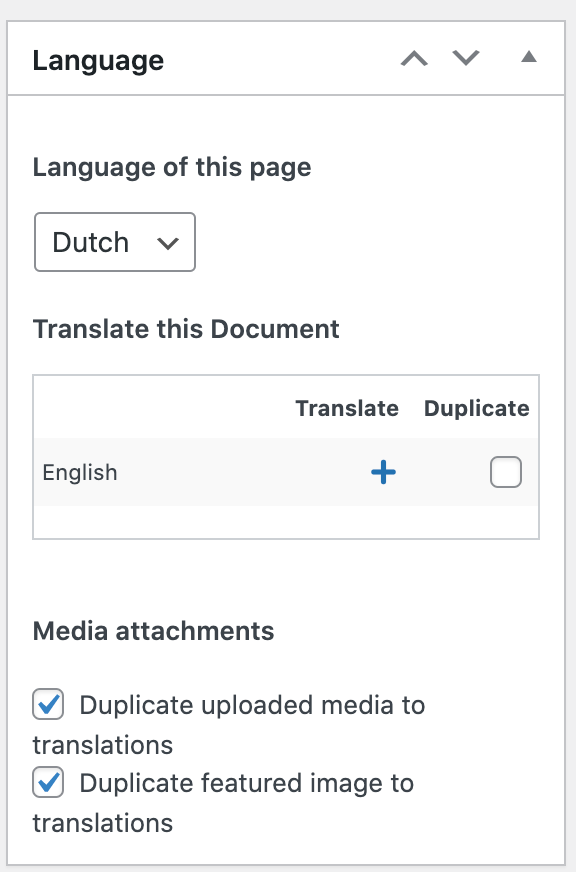
Stap 1: Duplicating the page
In the top right hand corner in the editor you will find the column with the languages.
By clicking the + of a language you will duplicate the page in question.
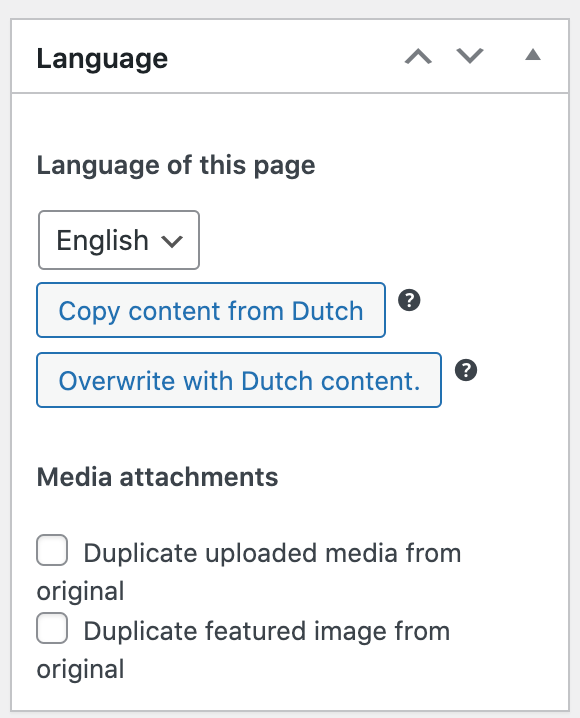
Stap 2: Overwrite with Dutch content
Then click ‘Overwrite with Dutch content’. If you duplicate from another language the message should be ‘Overwrite with X content’, referring to that specific language.
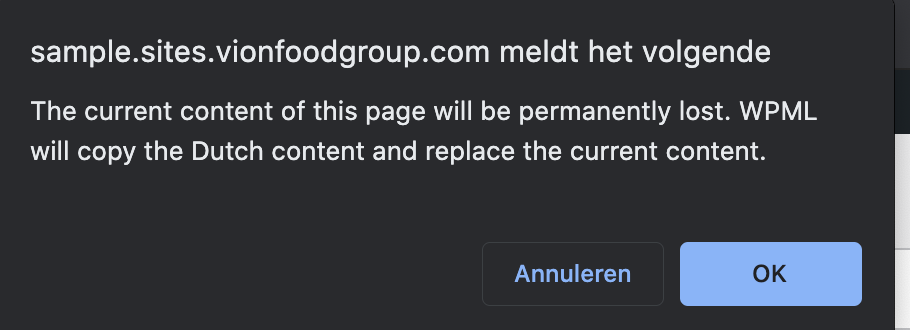
Now you will get a message that the current content of the page will be lost. This is OK, because the page was still empty, so press OK.
Stap 3: Translate independently
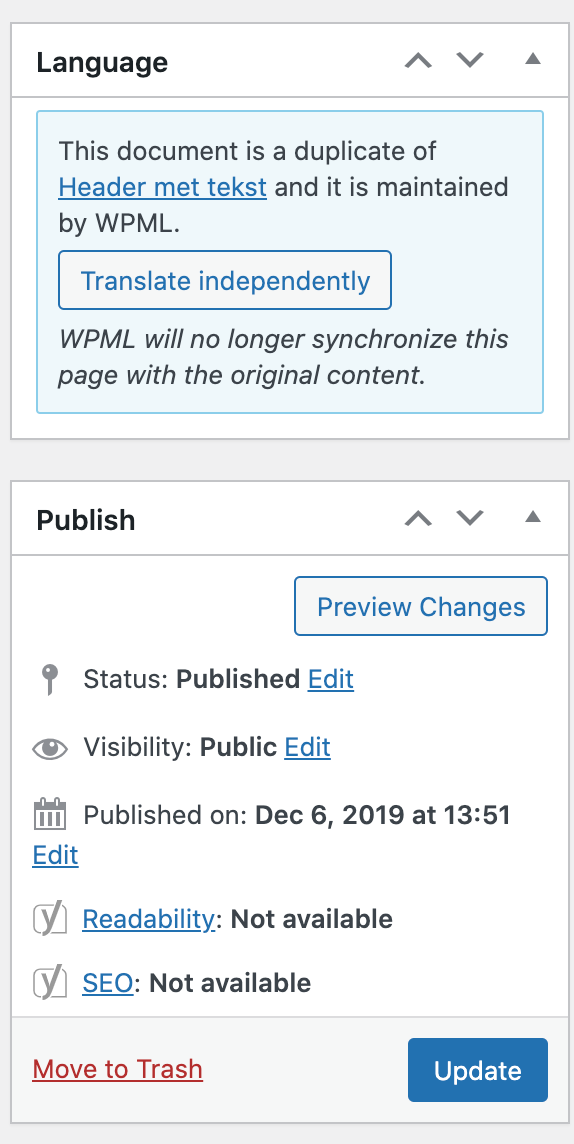
After you have clicked at the OK button, choose the option ‘translate independently’ that is shown in the top right hand corner. This option makes sure that from now you can change all the texts into the designated language without corrupting the original page that you duplicated.
Stap 4: Adjusting the permalink
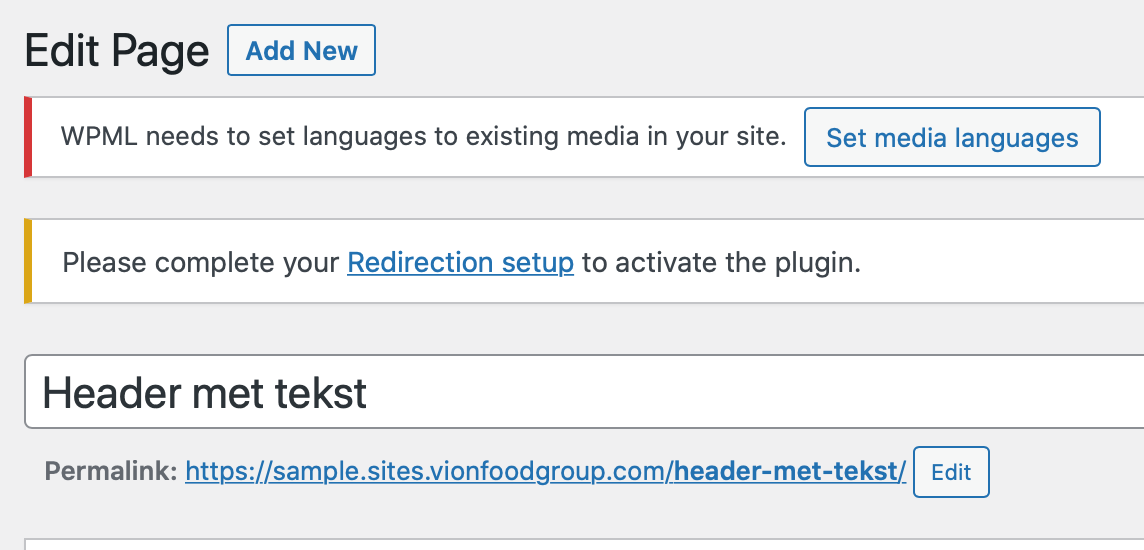
Now change the permalink of the page. This is the name of the page that visitors will see in their browser.
For this page for example, in stead of ‘vertalingen’ the last part of the permalink has been changed into ‘translations’. If a page name consists of several words, always use hyphens between the words, for example ‘english-translations’. Do not use punctuation marks or capitals in the permalink.
Then click at the blue button ‘Update’.
Now you can change all the texts into the correct language version.
Hyperlinks will not automatically be changed into the right language version. So pay attention that you replace all hyperlinks.